








How to install and run XAMPP on Linux with KDE desktop: complete step-by-step guide

1. We create a file named “xampp-control.sh” wherever we want.
2. We open it with a text editor and write the following code:
#!/bin/bash
ACTION=$(kdialog --menu «XAMPP Control» start «Start XAMPP»
stop «Stop XAMPP»
restart «Restart XAMPP»
status «XAMPP Status»)

if [ -n "$ACTION" ]; then
sudo /opt/lampp/lampp $ACTION
fi
3. Save.
4. Now, right-click on the file and go to “Properties / Permissions“, give execute permissions and accept.
When we double-click the file, a pop-up window will appear asking us what action we want to perform: Start, Stop, Restart, or Status.
It should look like this: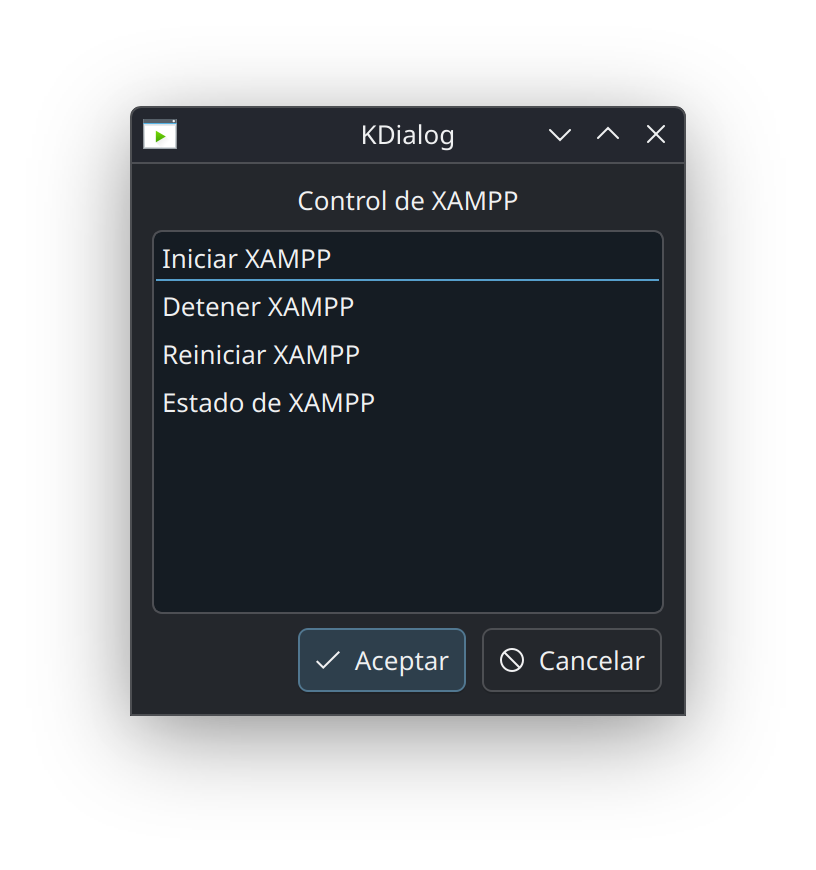
Customize the icon?
If we want to create a custom icon for running the program:
1. Create the following file on the “Desktop” with the name: xampp-control.desktop
2. Open it with our text editor and put the following code:
[Desktop Entry]
Version=1.0
Type=Application
Name=XAMPP Control
Comment=Control XAMPP easily
Exec=/home/user/APPIMAGE/xampp-control.sh
Icon=utilities-terminal
Terminal=true
Categories=Development;
3. In “Exec:” change the path to where we have our previous .sh file saved.
4. In “Icon:” you can put the absolute path of a PNG icon to use it as the icon.
Example: “Icon=/home/user/Images/ICONS/xampp.png”
Or the name of a standardized icon.
Example: **”Icon=utilities-terminal”**.
5. Save the file.
6. Right-click on the file and go to “Properties / Permissions“.
7. Give it execute permissions and accept.
We now have the custom icon that will launch the application to place wherever we want, such as on the desktop or any other folder.