







WordPress folder structure explained step by step
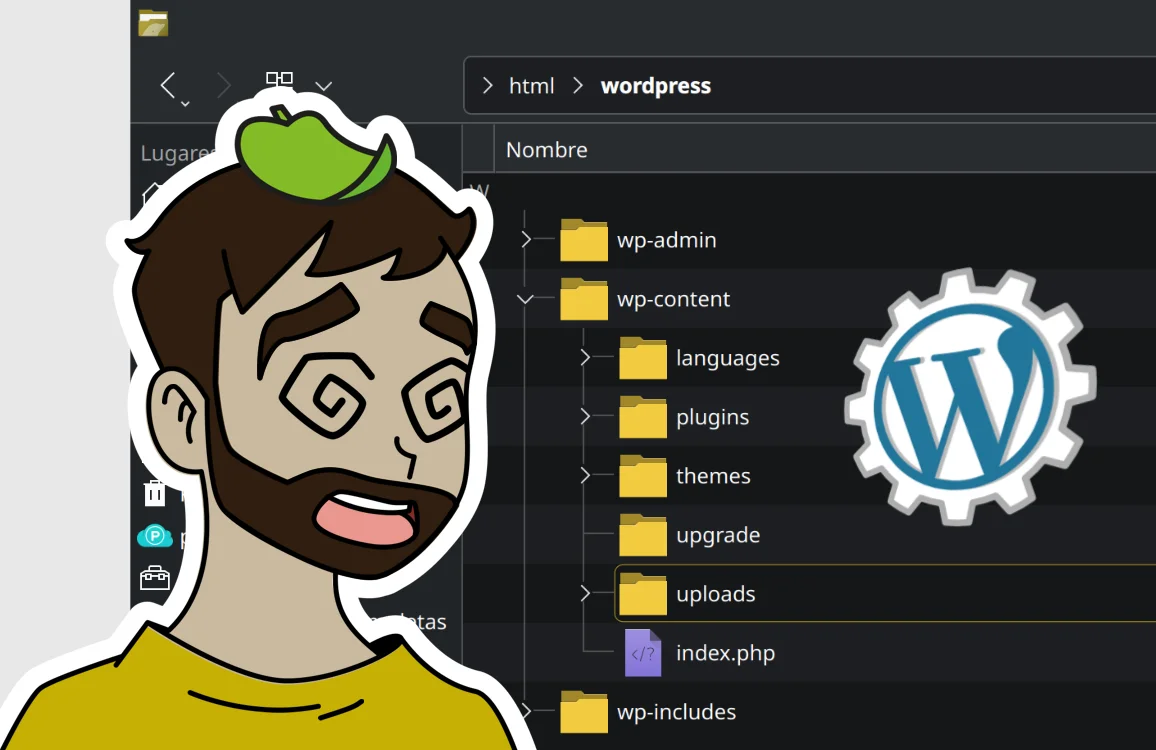
When we install WordPress for the first time, we encounter a series of folders and files that can be confusing if we have never worked with this content manager. However, understanding the WordPress file structure is essential to learn how to manage it correctly, maintain site security, and avoid serious errors.
In this article, you’ll learn how the WordPress folder structure is organized, where each one is located, what it’s for, and what type of files it contains. Additionally, we’ll explain two of the most important files in the system: wp-config.php and functions.php. This guide is designed for users with no prior experience, with clear and practical explanations.
📁 WordPress folder structure
When you install WordPress on a server (local or remote), all files are saved within a main folder, usually accessible from the web server.
Examples of common paths:
- Local:
htdocs/my-web/ - Hosting:
public_html/orwww/
Inside that folder you’ll find the WordPress base structure.
🗂️ Main WordPress folders
📂 wp-content (THE MOST IMPORTANT ONE)
Location:
/wp-content/
The wp-content folder is the most important for the user, since it contains all the customized content of the website.
Here you’ll find:
- Themes.
- Plugins.
- Images and uploaded files.
- Languages.
- Cache (in some cases).
👉 Golden rule:
👉 This is the folder you’ll interact with the most.
👉 The rest of WordPress is almost never modified.
🎨 wp-content/themes
Location:
/wp-content/themes/
Here all installed themes in WordPress are stored.
Each theme has its own folder:
themes/
 ├─ twentytwentyfour/
 ├─ astra/
 └─ my-custom-theme/
Contains files such as:
style.css→ theme stylesfunctions.php→ theme functionsheader.php,footer.php,index.php→ visual structure
👉 Only one theme is active, but several can be installed.
🧩 wp-content/plugins
Location:
/wp-content/plugins/
Here all WordPress plugins are stored.
Each plugin has its own folder:
plugins/
 ├─ woocommerce/
 ├─ elementor/
 └─ yoast-seo/
Functions:
- Add new functionalities.
- Do not directly affect the design.
- Can be activated or deactivated from the panel.
👉 If a plugin fails, it can often be deactivated by deleting or renaming its folder.
🖼️ wp-content/uploads
Location:
/wp-content/uploads/
Here all images and files uploaded from WordPress are stored:
- Images.
- PDFs.
- Videos.
- Audio files.
- etc.
Typical organization:
uploads/
 ├─ 2024/
 │   ├─ 01/
 │   ├─ 02/
 └─ 2025/
👉 WordPress organizes files by year and month automatically.
⚠️ Never upload images directly here without going through WordPress, unless you know what you’re doing. If you upload a file directly to these folders without going through the “Media” control panel, the database won’t record the uploaded file and it won’t appear in the control panel for you to manage that file.
🌍 wp-content/languages (optional)
Location:
/wp-content/languages/
Contains translation files:
- WordPress.
- Plugins.
- Themes.
Example:
languages/
 ├─ es_ES.mo
 ├─ plugins/
 └─ themes/
Allows WordPress to work in different languages.
⚙️ Other important folders (DO NOT TOUCH)
📂 wp-admin
Location:
/wp-admin/
Contains the files for the WordPress administration panel.
👉 If this folder gets damaged:
- You won’t be able to access the panel.
- WordPress will stop working correctly.
❌ Never modify files here if you’re a beginner.
📂 wp-includes
Location:
/wp-includes/
This is the internal WordPress core:
- Internal functions.
- Classes.
- APIs.
❌ Should not be modified under any circumstances.
📄 Main WordPress files
🔐 wp-config.php (KEY FILE)
Location:
Root of the WordPress installation.
This file controls:
- Database connection.
- Security.
- Advanced configuration.
Contains data such as:
- Database name.
- Database user.
- Database password.
- Database connection address (normally “localhost” or an IP:PORT number e.g., xxx.xxx.xx.x:xxx)
- Table prefix (normally wp_ although it’s always recommended to modify it for security).
- Debug mode: to display PHP errors on the website itself and know how to identify them (values true or false, to activate or deactivate it).
Basic example:
define('DB_NAME', 'database_name');
define('DB_USER', 'username');
define('DB_PASSWORD', 'password');
define('DB_HOST', 'localhost');
$table_prefix = 'wp_';
define('WP_DEBUG', false);
👉 Without this file, WordPress cannot function.
⚠️ Never share this file publicly.
🧠 functions.php (OF THE THEME)
Location:
/wp-content/themes/your-theme/functions.php
This file allows you to:
- Add custom functions.
- Insert PHP code without plugins.
Usage examples:
- Add a menu.
- Load scripts in PHP.
- Modify the theme’s behavior.
⚠️ An error here can leave the website blank (error 500).
👉 Recommendation:
- Use a child theme (we’ll see this later).
- Or add changes with specific plugins.
📌 Other important files
index.php→ main file..htaccess→ server rules (Apache). Where the rules for friendly URLs are recorded.wp-load.php→ loads WordPress.wp-settings.php→ system initialization.
✅ Conclusion
| Element | Location | What is it for? | Can it be modified? |
|---|---|---|---|
| wp-content | /wp-content/ | Contains all customized website content (themes, plugins, files). | ✅ Yes |
| themes | /wp-content/themes/ | Stores WordPress themes that control the website design. | ✅ Yes |
| plugins | /wp-content/plugins/ | Stores plugins that add functionalities to WordPress. | ✅ Yes |
| uploads | /wp-content/uploads/ | Folder where images and files uploaded from WordPress are stored. | ⚠️ With care |
| languages | /wp-content/languages/ | Contains language files for WordPress, themes, and plugins. | ⚠️ Uncommon |
| wp-admin | /wp-admin/ | Includes the WordPress administration panel files. | ❌ No |
| wp-includes | /wp-includes/ | Internal WordPress core (functions and libraries). | ❌ No |
| wp-config.php | Site root | Main configuration file (database and security). | ⚠️ Only if you know what you’re doing |
| functions.php | /wp-content/themes/your-theme/ | Allows adding functions and customizations to the active theme. | ⚠️ With care |
Understanding the WordPress folder structure is essential to work securely and confidently. Knowing which folder is for what, which ones you can modify and which ones you cannot, will allow you to keep your website organized, avoid errors, and learn WordPress solidly from the beginning.
Once you master this structure, you’ll be prepared to install themes, plugins, make backups, and customize your website correctly.