







How to install themes in WordPress (free, premium and child themes)
The WordPress theme defines the design, structure, and a large part of the visual functionality of your website. Choosing and correctly installing a theme is essential to have a professional, fast, and easy-to-maintain site.
Below, we explain all the ways to install a theme in WordPress, whether it is free or premium, and when it is convenient to use a child theme.
📌 What is a theme in WordPress?
A WordPress theme is a set of files that control the visual design of the site: colors, fonts, page structure, and some basic behaviors.
Changing a theme:
- ❌ Does not delete content.
- ✔️ Changes the appearance.
- ✔️ Can add or remove design options.
📌 What is a template in WordPress?
A WordPress template is related but not the same thing.
The Theme is the functional core of the look we will give to the website (new functions, structure, etc.).
The WordPress template is like the SKIN, the colors we will give to that entire Theme and its structure.
There are Themes that have templates to download and apply, and there are Themes that do not.
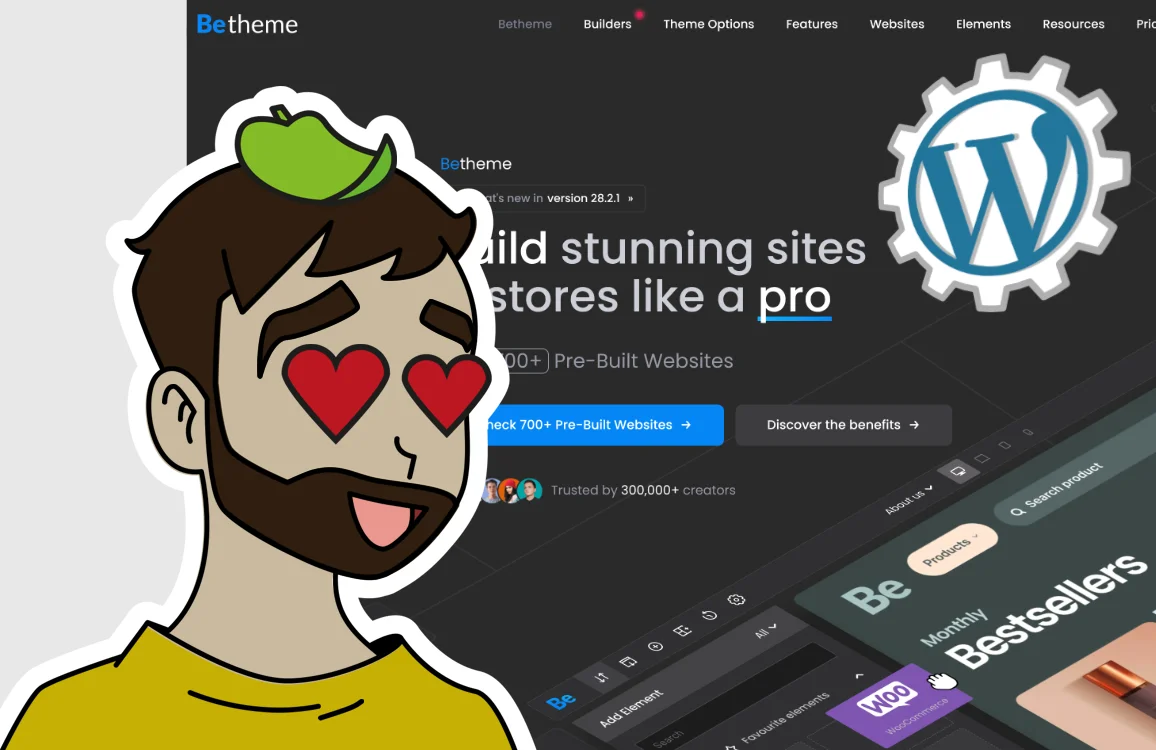
For example, the “BeTheme” Theme has all these templates ready to download and apply: https://muffingroup.com/betheme/prebuilt-websites/
🆓 Free themes vs premium themes
🟢 Free themes
These are themes available in the official WordPress repository (https://wordpress.org/themes), which are the same ones you can download from the WordPress control panel, in the left column: “Appearance / Themes” and by clicking the top button “Add Theme” and using the search bar that appears a little below “Search themes”. They are usually searched for by name.
Advantages:
- Free.
- Reviewed by WordPress.
- Easy installation.
- Automatic updates.
Limitations:
- Fewer customization options.
- Limited support.
- Basic functionalities.
👉 Ideal for simple projects or personal websites.
💎 Premium themes
These are paid themes developed by companies or independent authors.
Advantages:
- More design options.
- Better performance.
- Technical support.
- Frequent updates.
Where to find them:
- Official developer websites.
- Theme marketplaces like themeforest.net
👉 Ideal for professional or commercial projects.
⚙️ How to install a theme in WordPress (methods)
WordPress allows you to install themes in two main ways: automatic and manual.
🚀 Automatic installation of free themes
This method is the simplest.
Steps:
- Go to Appearance → Themes.
- Click the top button Add New.
- Use the search bar or filters and install any theme you like.
- Click Install.
- It takes a few seconds. Once installed, click Activate.
👉 The theme is downloaded and installed automatically. You can see how it looks on your website’s homepage.
📦 Manual installation of a theme (ZIP)
This method is mainly used for premium themes.
Steps:
- Download the BeTheme theme in
.zipformat from themeforest.net, go to your nickname (top right), “BeTheme / Downloads / All files & documentation” and download the zip. - Open the downloaded
.zip“themeforest-K38sISd7-betheme-responsive-multipurpose-wordpress-theme.zip” and extract the contents. - Browse through the folders and locate the following files “betheme.zip” and “betheme-child.zip“.
- Extract the contents of each zip into the path
/wp-content/themes/of your WordPress, leaving the folders like this:
/wp-content/themes/bethemeand/wp-content/themes/betheme-child - Go to your browser and in WordPress go to the Appearance → Themes screen (or reload it if you were already there to update it).
- Now two versions of BeTheme will appear. The normal one and the Child.
- Activate the BeTheme-Child.
- Done!
👉 You can see how it looks on your website’s homepage.
Extra note:
When downloading a Premium Theme, if the .zip file is prepared for installation (when opening the .zip you will only see one folder with the theme name, like when you open “betheme.zip” you will only see the “betheme” folder) you can also install the theme from the WordPress control panel this way:
- Go to Appearance → Themes.
- Click the top button “Add Theme”.
- Click the top button “Upload Theme”.
- Select the
.zipfile (in this example it would be “betheme.zip”) - Install now.
- Do the same with the file (“betheme-child.zip”).
- Activate the child theme.
⚠️ The file must be a compatible .ZIP, only the theme folder should appear. If there are files and different folders in the root of the .ZIP, it is NOT an installation package.
👶 What is a child theme in WordPress?
A child theme is a theme that inherits the design and functionalities from another theme (parent theme).
🎯 What is a child theme for?
- To modify the design without touching the original theme.
- Avoid losing changes when updating the Theme.
- Add CSS or custom functions safely.
By making our changes in the “child theme”, if the “parent theme” is updated, in principle we will not lose our changes.
🧩 When to use a child theme?
✔️ If you are going to touch CSS.
✔️ If you are going to modify PHP functions.
✔️ If the theme is updated frequently.
❌ It is not necessary if you only use options from the theme’s panel.
In professional projects, it is always recommended to use the child theme.
⚠️ Common mistakes when installing themes
- Uploading the incorrect file:
- It doesn’t install because it detects an invalid folder or file structure in the zip.
- Installing several unnecessary themes:
- It is recommended to install only 3. The child theme (“BeTheme-Child”), the main one (“BeTheme”), and a default WordPress theme (“Twenty Twenty-Five” for example, in case we need to do tests in the future and activate this one to check for errors).
- Modifying the theme directly without a child theme:
- If the parent Theme is updated, you may lose some changes.
- Using pirated themes called “null” or “nulled”:
- They may contain viruses and malicious code.
- Not checking compatibility with plugins.
✅ Good practices when installing a theme
- Keep only the main theme and one default WordPress theme:
- With the “Parent theme + child activated” and a default WordPress theme only installed, not activated.
- Check compatibility with your WordPress version:
- Does anything explode? Any PHP error on screen? Blank page when entering the homepage? Nothing? Then everything is OK.
- Delete the rest of the themes you don’t use (except, as we said, one standard default WordPress theme).
- Update the theme regularly.
🏁 Conclusion
Knowing how to install themes in WordPress correctly allows you to customize your website safely and professionally. Whether it’s a free theme, a premium theme, or a child theme, choosing the right method and following good practices will avoid errors and future problems.